
It's 10pm. You've finished the job, sent a quick message to the client, and now you're staring at a handful of receipts, a bank app, and a half-built invoice in Excel or Google Sheets. That's how admin starts for a lot of UK sole traders. Not with a grand system. With a blank grid and the hope that keeping everything in one file will be enough.
That instinct is sensible. A spreadsheet is familiar, cheap, and flexible. If you're learning how to create spreadsheet systems for your business, you're not doing something crude or outdated. You're doing what most small firms do first, because it works well enough when the business is still simple.
Table of Contents
- Starting Your First Business Spreadsheet
- Choosing Your Tool and Structuring for Success
- Essential Formulas to Automate Your Admin
- Building Key Templates for Quotes and Invoices
- Sharing, Security, and Simple Integrations
- When You Have Outgrown Your Spreadsheet
Starting Your First Business Spreadsheet
A new business rarely needs polished finance systems on day one. It needs somewhere to log money in, money out, and which client still owes payment. That's why spreadsheets remain the default starting point. The UK private sector had 5.7 million businesses in early 2025, and 99% are small, with many relying on spreadsheet tools to manage bookkeeping and stay aligned with UK tax rules, according to the UK Parliament business population briefing.
That matters because the problem isn't unusual. The electrician tracking parts purchases, the freelance designer logging deposits, and the cleaner recording weekly client payments all start with the same need. They need order, not complexity.
Why the spreadsheet feels right at first
A spreadsheet gives you immediate control. You can create tabs for expenses, income, and unpaid invoices in less than an hour. You can rename columns, add notes, and adapt it to the way you work.
For many service businesses, that flexibility is the main attraction. You don't need training. You just open Excel or Google Sheets and begin.
Practical rule: If you're starting from scratch, a simple spreadsheet is better than no system at all.
There is a catch. Most spreadsheet trouble starts subtly. A file that began as “just a quick tracker” becomes the place where you manage jobs, clients, invoices, VAT figures, and payment chasing. Then one formula breaks. A tab gets duplicated. A receipt goes missing. Admin starts taking longer than the work itself.
The first signs of spreadsheet strain
You've probably outgrown a basic sheet when these things start happening:
- You re-enter the same client details on multiple tabs or documents
- You keep separate files for quotes, invoices, and payments because one workbook feels messy
- You hesitate before editing formulas because you're worried something will break
- You can't tell at a glance which jobs are done, billed, or paid
If that sounds familiar, the issue usually isn't effort. It's structure. A properly set up workbook gives you breathing room in the early stage, especially when you've already got enough to think about with company setup for a new UK business.
Choosing Your Tool and Structuring for Success
Excel and Google Sheets can both do the job. The better question isn't which brand wins. It's whether the workbook is built so you can trust it a month from now.
If you want to learn how to create spreadsheet systems that last, start with structure before formulas. The file should reflect how the business runs. One place for raw entries, one place for calculations, and one place for outputs you send to clients or review yourself.
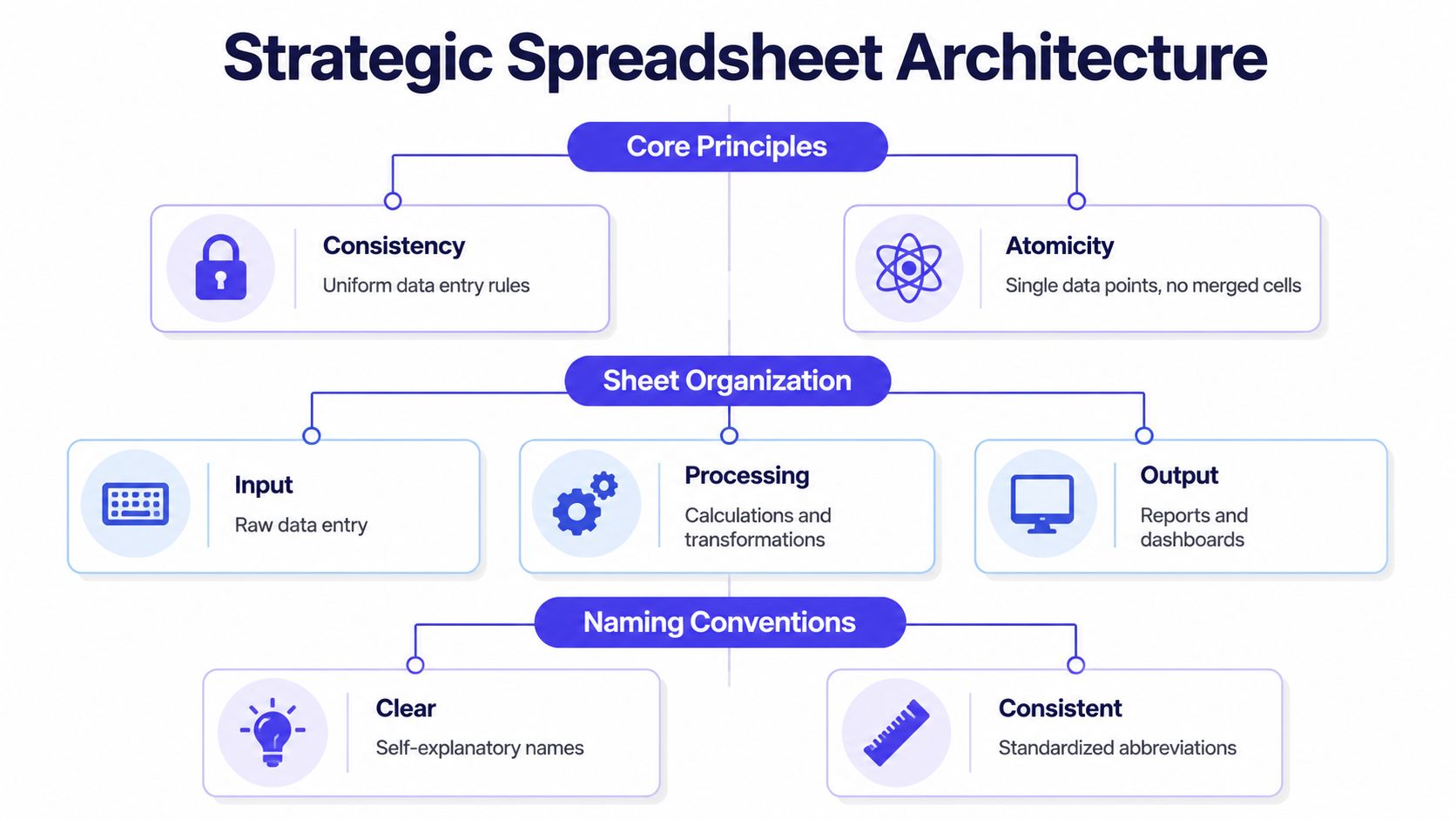
Use one sheet per purpose
For UK service businesses, the most important financial foundation is a separate Income sheet and Expenses sheet. That dual-sheet setup is critical for VAT returns, and using Excel's Table function with Ctrl+T can reduce manual formula errors by approximately 40% compared with static references, as explained in this UK bookkeeping walkthrough on YouTube.
A practical workbook often looks like this:
| Sheet | What goes in it | Why it matters |
|---|---|---|
| Income | Date, invoice number, client, service, net amount, VAT amount, payment status | Keeps sales records clean |
| Expenses | Date, supplier, description, net amount, VAT amount, category | Supports bookkeeping and VAT tracking |
| Clients | Client name, address, email, phone, notes | Stops repeat typing |
| Invoice Log | Invoice number, issue date, due date, total, status | Helps with chasing payment |
| Timesheet or Jobs | Job date, hours, staff, location, notes | Useful for service delivery and costing |
The columns that actually matter
When people build a spreadsheet too quickly, they often create vague headings like “amount” or “notes” and fix the mess later. That's where errors creep in.
For your Expenses sheet, keep these columns clear:
- Date for when the cost was incurred or paid
- Description so you know what the entry was
- Net Amount for the value before VAT
- VAT Amount so you can track tax correctly
For Income, use the same discipline. If your client pays in stages, record each payment clearly rather than burying updates in comments.
Keep one fact in one cell. Don't merge client names, job notes, and invoice references into a single text block.
Build around Tables, not loose rows
A lot of spreadsheet pain comes from formulas that only work for the first ten rows. Then a new invoice gets added in row eleven and nothing updates. Tables fix much of that. In Excel, select your data range and press Ctrl+T. In Google Sheets, keep a consistent header row and apply formulas down the full column carefully.
Tables help with:
- Automatic formula fill
- Cleaner sorting and filtering
- Less risk when adding new rows
- More readable references
You don't need a fancy dashboard at this stage. You need a workbook that survives normal use. If you want examples of practical admin workflows before building your own, the AetherCloud blog is a useful reference point for common UK service business processes.
Essential Formulas to Automate Your Admin
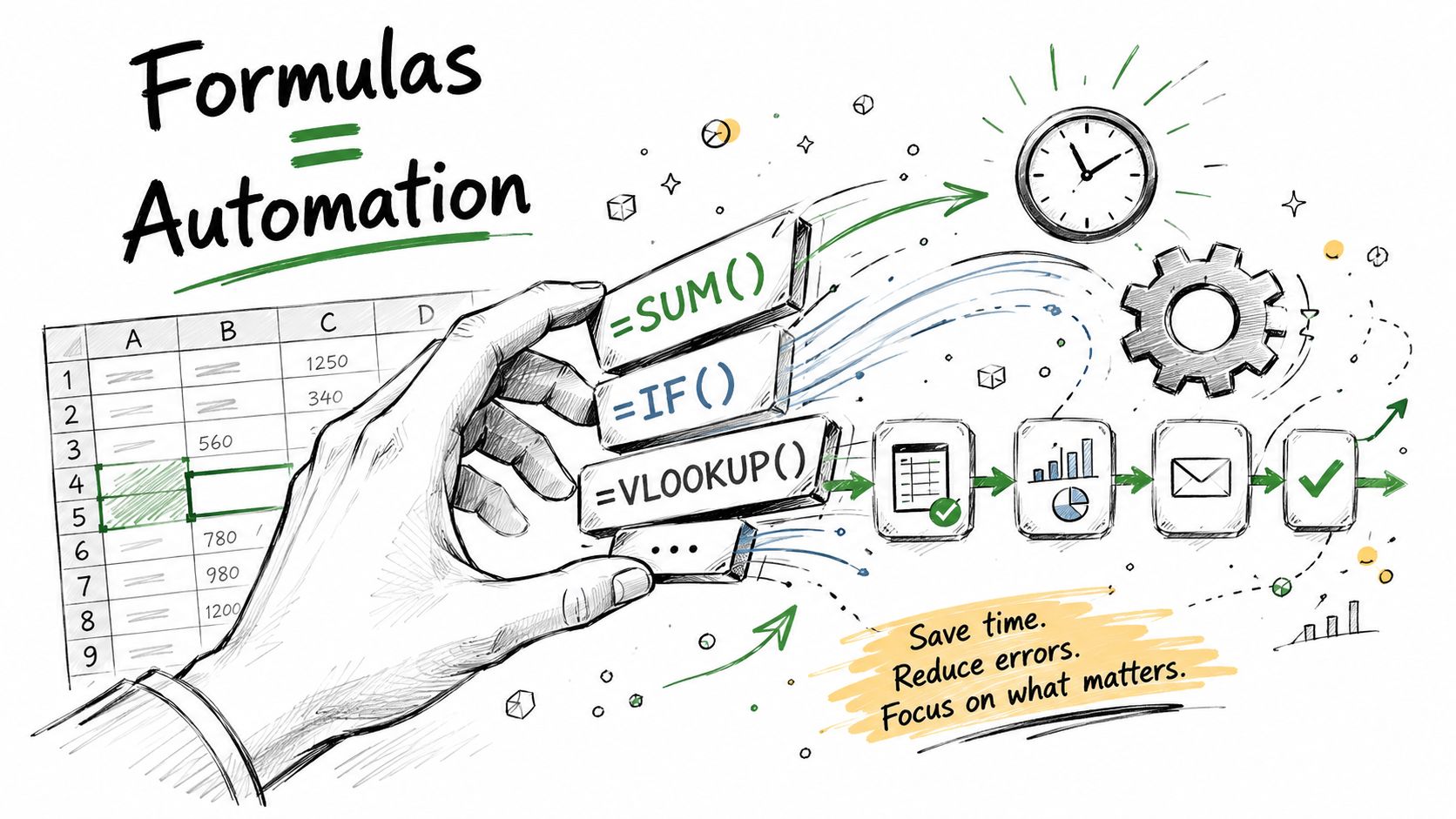
A spreadsheet becomes useful when it starts doing repeat work for you. You don't need advanced modelling. You need a handful of formulas that remove typing, reduce mistakes, and help you spot issues before they become awkward phone calls.
Many people discover the true value of learning how to create spreadsheet workflows properly.
Start with the formulas you'll use weekly
These are the ones most service businesses need:
- SUM to total invoice values, expenses, or unpaid balances
- IF to flag overdue invoices
- XLOOKUP or VLOOKUP to pull client details from your Clients sheet
- Simple multiplication to calculate VAT at the UK standard rate of 20%
- Running total formulas to track income or spending across the month
Here are practical examples.
If B2 contains the net charge for a service, VAT at the standard UK rate is:
=B2*20%
If you want the gross total:
=B2+(B2*20%)
If your invoice due date is in E2 and payment status is in F2, an overdue flag might be:
=IF(AND(TODAY()>E2,F2<>"Paid"),"Overdue","OK")
That's simple, but it saves you from manually scanning every row.
Use lookups to stop retyping client details
Retyping addresses and emails is where admin becomes repetitive. If you keep a dedicated Clients sheet, a lookup formula can pull the correct information into your invoice template.
If the client name is in A2 and your Clients sheet stores names in column A and addresses in column B, a lookup might be:
=VLOOKUP(A2,Clients!A:B,2,FALSE)
If you have access to XLOOKUP, it's cleaner:
=XLOOKUP(A2,Clients!A:A,Clients!B:B,"")
That one change reduces typos and keeps customer records more consistent.
The best spreadsheet formulas don't look clever. They remove one annoying task you repeat every week.
A quick walkthrough helps if you want to see common spreadsheet automations in action:
Add one useful visibility layer
Most spreadsheets fail because they tell you what happened, but not what needs attention today. A basic formula-driven summary tab helps.
Include:
- Total invoiced this month
- Total paid this month
- Outstanding balance
- Overdue invoices count
- Top clients by billed value
That gives you enough oversight to act without hunting through tabs. If you later want those figures in a more readable view, it helps to understand what proper business analytics dashboards should surface automatically.
Building Key Templates for Quotes and Invoices
The spreadsheet starts as a record-keeping tool. Then clients ask for something presentable. That's the point where many businesses realise they also need document templates, not just rows of transactions.
There's nothing wrong with creating quote and invoice templates in a workbook. In fact, plenty of UK businesses do exactly that. Free Excel bookkeeping templates built for UK firms have been downloaded over 350,000 times, covering cash books, profit and loss statements, and invoice tracking, according to Business Accounting Basics.
What a workable quote template needs
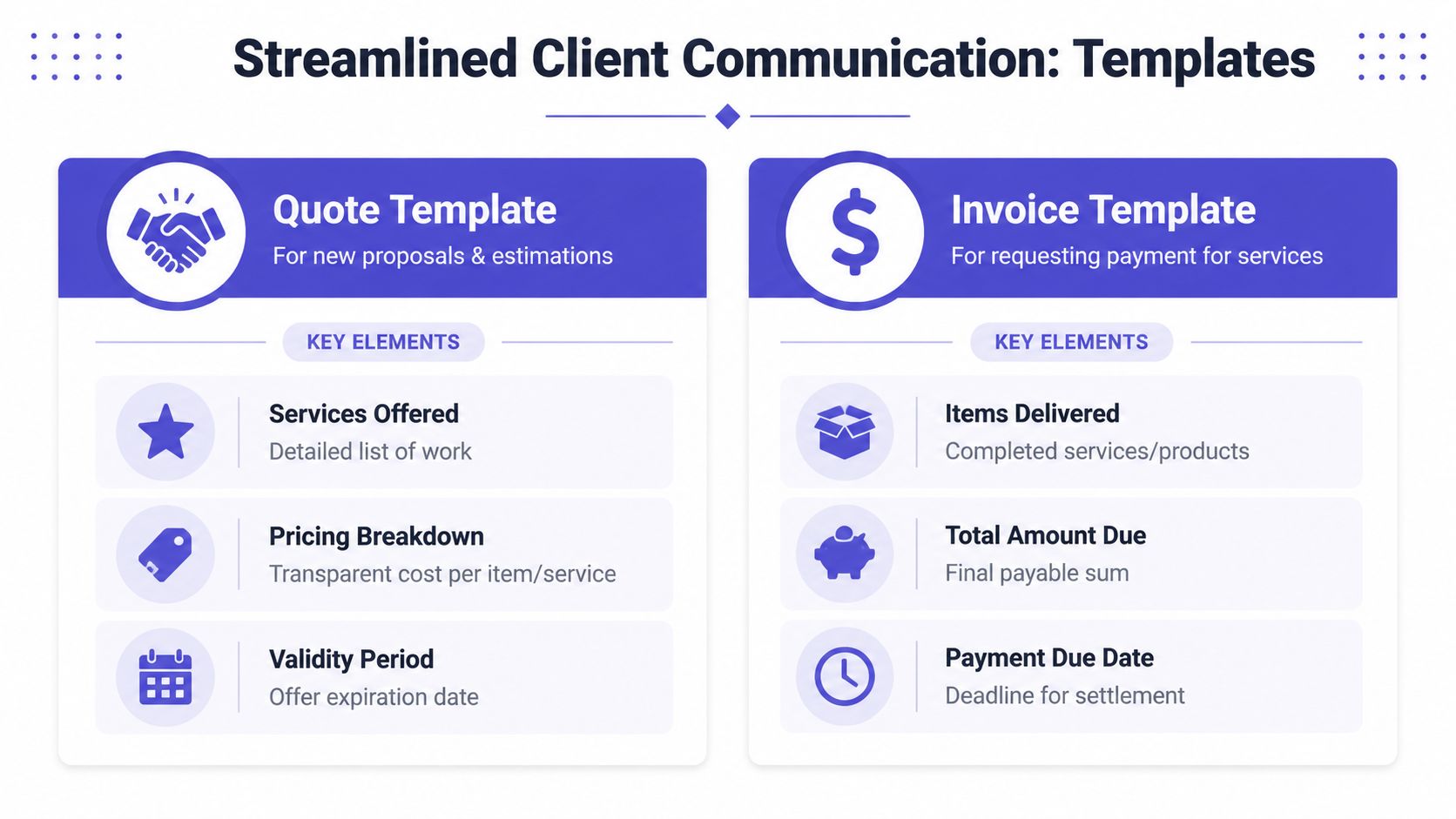
A quote should look clean and answer the client's immediate questions. Keep it on a separate template tab, with linked cells pulling from your client and pricing data.
Include:
- Your business details including address and contact information
- Client details pulled from your client list if possible
- Services offered with a short description of the work
- Pricing breakdown with line items, subtotal, VAT if applicable, and total
- Validity period so the quote doesn't sit open forever
A practical quote isn't about design flair. It's about making approval easy.
What changes when it becomes an invoice
An invoice is similar in layout, but the job of the document is different. A quote asks for approval. An invoice asks for payment.
Your invoice template should include:
| Template area | Quote | Invoice |
|---|---|---|
| Client details | Yes | Yes |
| Scope or item list | Yes | Yes |
| Price breakdown | Yes | Yes |
| Due date | Optional | Essential |
| Payment details | Usually no | Yes |
| Invoice number | No | Yes |
This is the awkward part of a spreadsheet setup. Once a quote is approved, you usually copy the sheet, rename it, change a few fields, add payment terms, save a PDF, and hope you don't leave “Quote” in the header by mistake.
A spreadsheet can produce professional documents. It just can't remove the manual handoff between quote, invoice, and payment.
That handoff is where admin starts to drag. If you're comparing manual templates with software-based quoting, it's worth reviewing how dedicated quoting workflows handle approval and conversion more cleanly.
Sharing, Security, and Simple Integrations
A spreadsheet isn't only something you build. It's something you have to live with. You share it with a bookkeeper, email PDFs to clients, export CSVs from the bank, and try to make sure everyone is looking at the same version.
That's where the hidden friction shows up.
For small UK businesses, 68% of successful firms reconcile accounts weekly, and that habit reduces tax-time errors by 55% compared with monthly reconciliation, according to Xero's UK small business bookkeeping guide. Weekly reconciliation is much harder when you're manually cross-checking bank statements against a standalone spreadsheet.
Sharing sounds simple until versions split
Google Sheets is easier for live collaboration. Excel is often better for offline use and more advanced workbook logic. Neither solves version chaos if people export copies, email attachments around, or save local duplicates with names like Invoices FINAL v3.
Common issues include:
- One person edits the wrong file
- A sent invoice PDF no longer matches the current workbook
- Your accountant gets an outdated copy
- Sensitive client data gets shared more widely than intended
If you must share a spreadsheet, keep one master file and restrict editing rights tightly. Send PDFs to clients, not the workbook itself.
Imports and exports are where errors creep in
Most service businesses eventually start moving data between tools. Bank statements arrive as CSV. An invoice gets exported to accounting software. Client details move from a contact list into a quote template.
Those transfers work, but each one adds a chance for mismatch. Date formats change. VAT fields don't line up. Customer names differ slightly between files.
A practical routine looks like this:
- Import bank data on a set day each week
- Match transactions against your income and expense tabs
- Mark anything unclear immediately
- Export only clean, reviewed data
If your admin depends on remembering which file is the latest, the process isn't secure enough.
It also helps to set permissions properly wherever business data lives. Even in a simple setup, your account and operational settings should reflect who can view, edit, or export sensitive information.
When You Have Outgrown Your Spreadsheet
A spreadsheet is a good servant and a poor manager. It handles records well enough when the business is small and the workflow is linear. It struggles when clients want faster responses, staff need shared visibility, and payments, bookings, and documents all need to connect.
The tipping point usually isn't dramatic. It shows up in repeated little failures. A quote takes too long to send. An invoice isn't chased because the payment status wasn't updated. Client details are stored in three places and none feel fully current.
The red flags are operational, not technical
You've likely outgrown the spreadsheet if:
- You manage appointments in one tool and invoices in another
- You copy client information between forms, files, and messages
- You create quotes manually and then rebuild them as invoices
- You don't have a single view of revenue, unpaid invoices, and recent client activity
- You worry about compliance as reporting rules tighten
That last point matters more now. For UK sole traders with income over £50,000, the Making Tax Digital requirement means quarterly updates via compatible software from April 2026, according to Startups' UK small business statistics coverage. If you rely only on a basic spreadsheet, that becomes a genuine compliance risk.

What a better system changes in practice
The upgrade isn't merely that software looks cleaner than a workbook. It's that connected processes remove rework.
Instead of maintaining separate systems, a unified platform lets a service business:
- keep client records in one place
- create quotes quickly
- turn approved quotes into invoices without rebuilding them
- collect payments online
- track business performance through one dashboard
- present a more professional front to clients
That matters for tradespeople, consultants, agencies, and freelancers because admin time often gets squeezed into evenings. The less switching, copying, exporting, and checking you do, the easier it is to stay organised when work picks up.
When the spreadsheet becomes the place where work gets stuck, not tracked, it's time to move on.
Learning how to create spreadsheet systems is still worthwhile. It teaches discipline. It shows you what information the business needs. But for a growing UK service business, the spreadsheet should be the starting point, not the final operating model.
If you're ready to move from scattered spreadsheets to one connected system, AetherCloud brings scheduling, CRM, quoting, invoicing, online payments, digital business cards, and business insights into one simple platform built for UK service businesses. It's a practical way to reduce admin, stay organised, and run the business more professionally without stitching multiple tools together.